
How many grades are still missing for each student? Use COUNTBLANK to count the empty cells in a selection of columns.
An entered zero is not an empty cell. COUNTBLANK helps you distinguish a missing grade from a grade of zero.
1. Start with an example
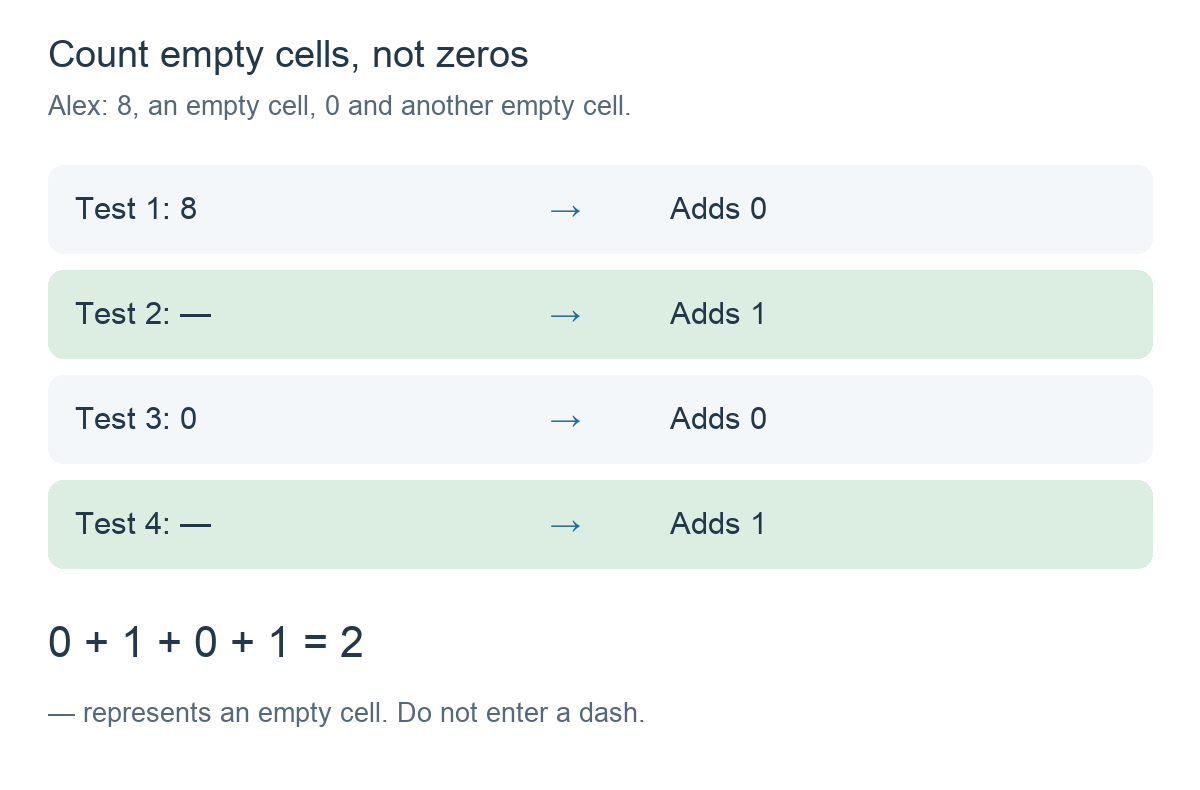
Alex has four test columns. Test 1 contains 8, Test 2 is empty, Test 3 contains 0, and Test 4 is empty.
Two cells are empty, so the result should be 2.
2. Create the calculation
Add a calculation column and choose Formula. In Functions, select Count empty cells (COUNTBLANK).
Use the column selector to insert your four test columns:
COUNTBLANK(Test 1, Test 2, Test 3, Test 4)Test 1 to Test 4 represent selected column references. Do not type these example names as plain text.
Read the formula as: Count how many of these four cells are empty for this student.
3. Understand the arguments
COUNTBLANK takes the columns you want to check:
COUNTBLANK(column, column, ...)Each empty cell adds 1 to the count. A cell with an entered numeric grade, including zero, adds nothing. The result is calculated separately for each student.
You do not need a condition or VALUE(). COUNTBLANK already knows that it is checking for empty cells.
4. Check the results for your class
The same formula checks the same four columns for every student:
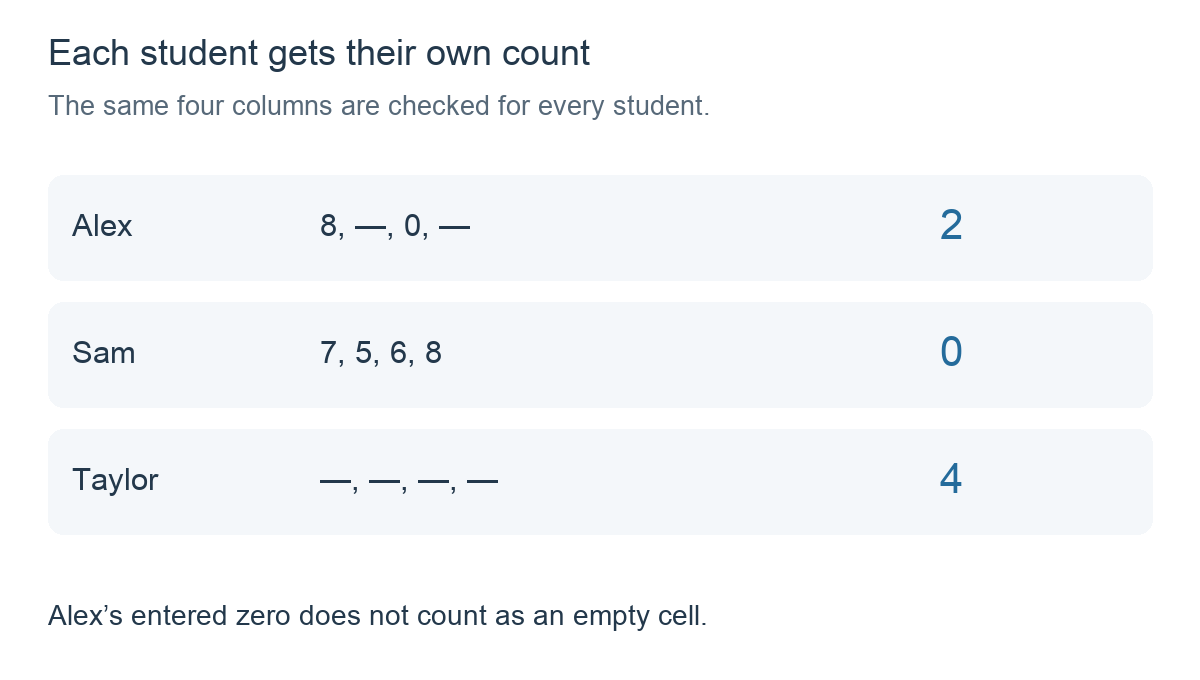
If you enter a grade in Alex’s Test 2 cell, the count changes from 2 to 1. If you also enter a grade in Test 4, it becomes 0. Entering zero fills a cell too.
An empty cell does not explain why a grade is missing. Use the count to find gaps, then check whether they mean unfinished work, absence or a grade you have not entered yet.
5. Count empty cells in a folder
If your test columns are directly inside a folder called Tests, use FOLDER to select them:
COUNTBLANK(FOLDER(Tests))Select the Tests folder reference inside FOLDER. The formula then counts the empty cells in the folder’s immediate columns. A new test added directly inside that folder becomes part of the selection.
If Alex already has two empty test cells and you add another test whose cell is empty for Alex, the count becomes 3.
FOLDER uses only the top level. A subfolder contributes its own result column; it does not expose its individual cells. See FOLDER: Use a folder in a formula.
6. Show a message instead of a count
Combine COUNTBLANK with IF if you prefer a message. For the same four individually selected tests:
IF(COUNTBLANK(Test 1, Test 2, Test 3, Test 4) > 0, 'Missing grades', 'Complete')Insert Missing grades and Complete using the Text option in Functions. The quoted words above represent those text items.
Alex’s count of 2 gives Missing grades. Sam’s count of 0 gives Complete. Here, Complete means all four selected cells are filled; it does not mean the student passed.
See TEXT: Show a message with a condition for how to insert the messages.
Things to remember
- Zero is a grade. It does not count as an empty cell.
- Select the columns you need. A fixed list checks those columns only; use FOLDER when you want to follow a folder’s contents.
- Keep the formula column outside the sample folder. This makes it clear which test columns are being checked.
- COUNTBLANK counts empty cells, not failed tests. Use COUNTIF to count grades that meet a numeric condition.
Related guide: COUNTIF: Count grades that meet a condition.