
Suppose your test columns are grouped in a folder called Tests. You want a formula that uses all the tests in that folder, including new tests you add later.
FOLDER selects the columns. Another function decides what to do with them. We will use FLEXAVERAGE to calculate their average, then COUNTIF to count how many tests each student has passed.
1. Start with a folder
Put four test columns directly inside a folder called Tests. All four tests are marked out of 10. Alex’s grades are 4, 5, 8 and 3.
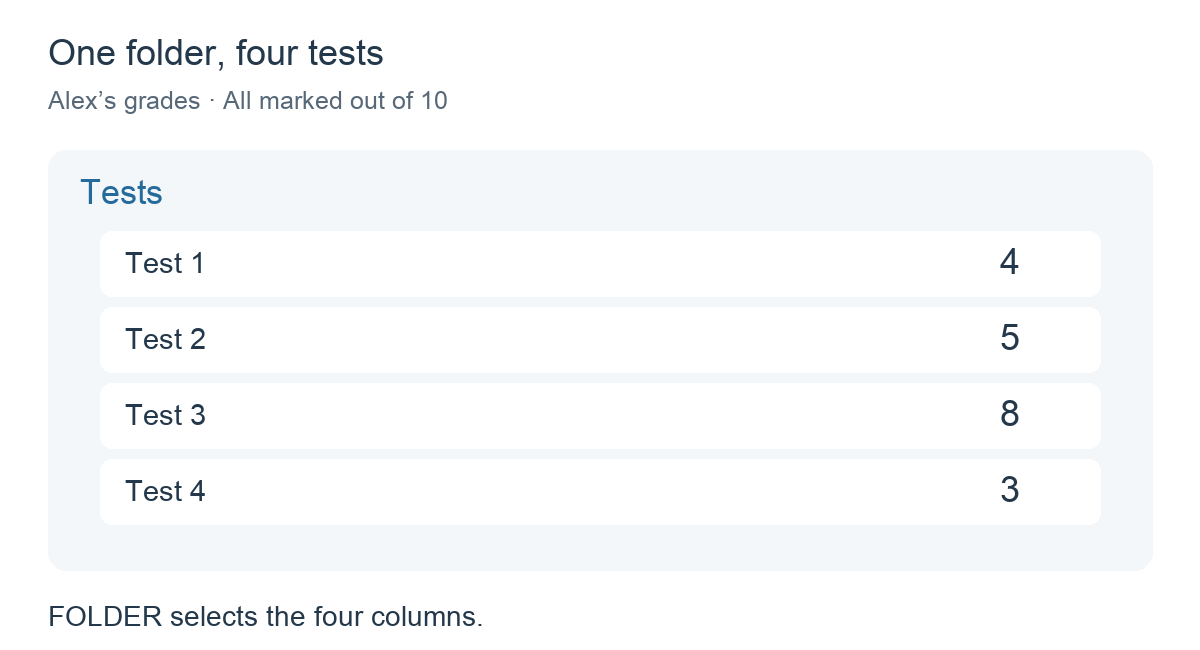
The average should be 5: (4 + 5 + 8 + 3) ÷ 4 = 5.
2. Create the calculation
Add a calculation column outside the Tests folder and choose Formula. Use the Functions list to insert FLEXAVERAGE and FOLDER, and use the column selector to insert the Tests folder reference inside FOLDER.
The completed formula reads:
FLEXAVERAGE(FOLDER(Tests))Tests represents the folder reference inserted with the selector. Do not type the example name as plain text.
Read the formula as: Take the columns inside Tests and calculate their average for this student.
3. Understand the two parts
FOLDER(Tests) supplies the columns directly inside Tests. In this example, that is Test 1, Test 2, Test 3 and Test 4.
FLEXAVERAGE(...) calculates the average of the values supplied by those columns, skipping empty cells. For Alex, this gives the same result as:
FLEXAVERAGE(Test 1, Test 2, Test 3, Test 4)The difference is how you select the columns: FOLDER uses the folder’s contents instead of a fixed list of individual tests.
4. Add another test
Add Test 5 directly inside Tests. Alex scores 10. Keep the formula exactly as it is:
FLEXAVERAGE(FOLDER(Tests))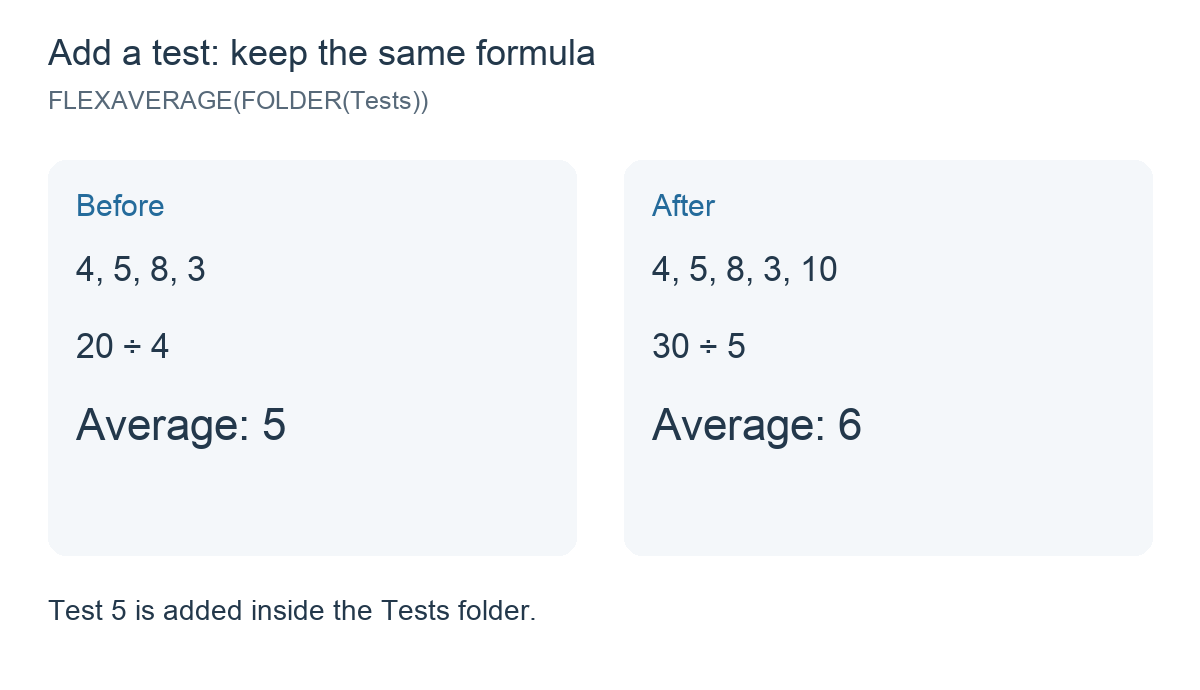
The calculation is now (4 + 5 + 8 + 3 + 10) ÷ 5 = 6. A test added outside the folder is not part of this selection.
If Alex’s new test cell is still empty, FLEXAVERAGE skips it and the average stays 5. If you enter a zero instead, the average becomes 4: (4 + 5 + 8 + 3 + 0) ÷ 5.
5. Use the folder with COUNTIF
FOLDER also works with the COUNTIF function from our previous guide. To count grades of 5 or higher in the same folder, use:
COUNTIF(VALUE() >= 5, FOLDER(Tests))FOLDER selects the tests; COUNTIF checks their grades. With Alex’s original grades (4, 5, 8 and 3), the result is 2. After adding the fifth grade of 10, the result becomes 3.
See COUNTIF: How many tests has each student passed? for an explanation of VALUE() and the condition.
6. What about subfolders?
FOLDER uses the top level only. It does not collect the individual columns inside a subfolder. The subfolder itself is selected as one column, using its own result.
For example, suppose Tests contains Test 1 with a grade of 4, Test 2 with a grade of 6, and a Project subfolder whose result is 8:
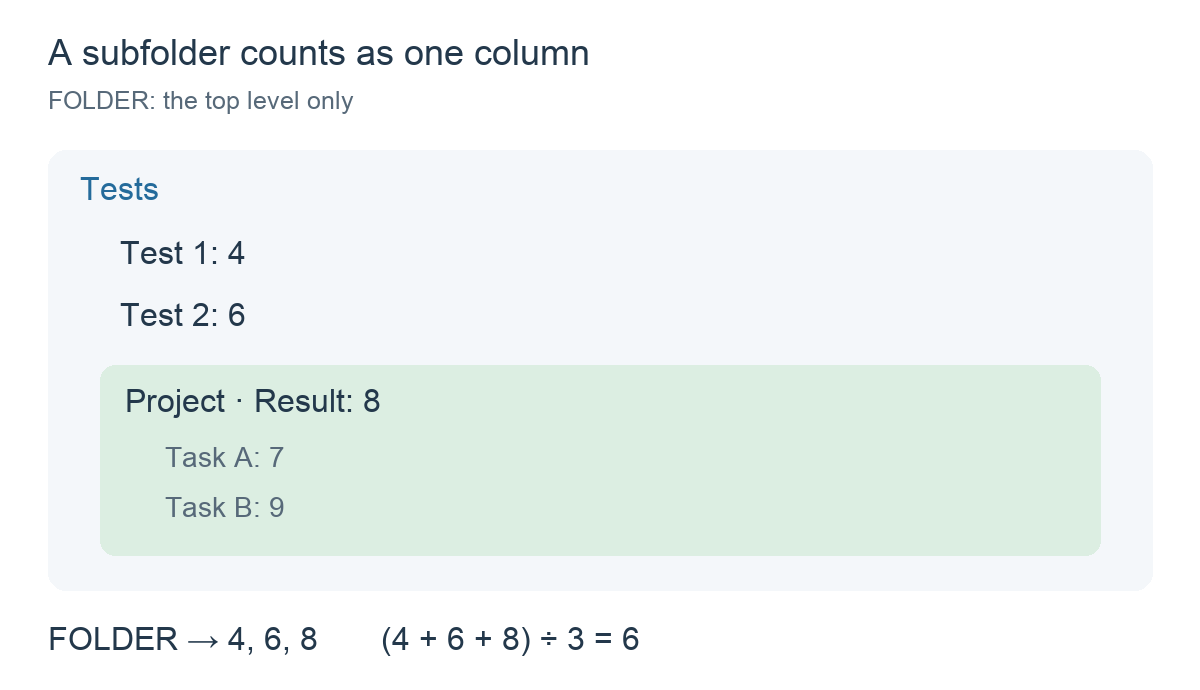
FLEXAVERAGE(FOLDER(Tests)) therefore gives (4 + 6 + 8) ÷ 3 = 6. SUBFOLDERS is a separate function for expanding a folder across multiple levels; it is outside this guide’s example.
An example from the app
This image comes from iDoceo’s built-in FOLDER documentation. It shows the same principle with a folder called Homework:
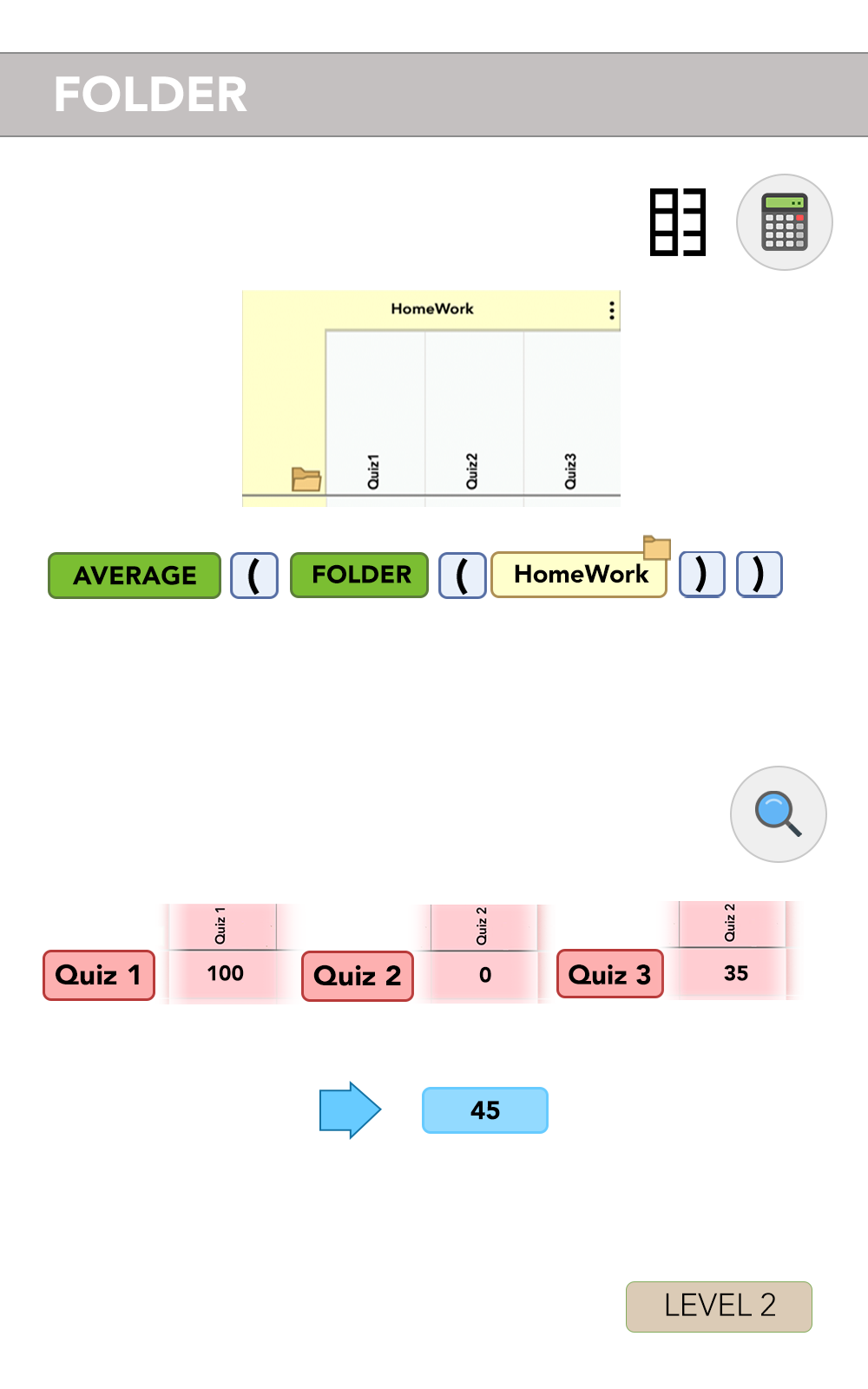
AVERAGE is retained for compatibility and behaves like FLEXAVERAGE in the current source. Our walkthrough uses FLEXAVERAGE to make the treatment of empty cells clear.
Things to remember
- FOLDER selects; the surrounding function calculates. Put it inside FLEXAVERAGE or COUNTIF for the examples above.
- Select the folder, not just its result.
FLEXAVERAGE(Tests)references the folder column’s result; adding FOLDER expands its immediate contents. - Keep the sample simple. Use test columns on the same score scale, with the formula column outside the folder. Other calculation columns inside the folder can also contribute their results.
- Empty cells and zero are different. FLEXAVERAGE skips empty cells and includes entered zeros.
- A standard folder average may be enough. Use the folder’s own average calculation for a straightforward average. FOLDER is useful when its columns need to be part of a formula, such as a conditional count.