
Suppose you have four test columns, each marked out of 10. You want another column showing how many tests each student has passed.
COUNTIF counts how many times a condition is met across your selected columns. It checks each grade against a rule. In this example, the rule is “the grade is 5 or higher”.
1. Start with an example
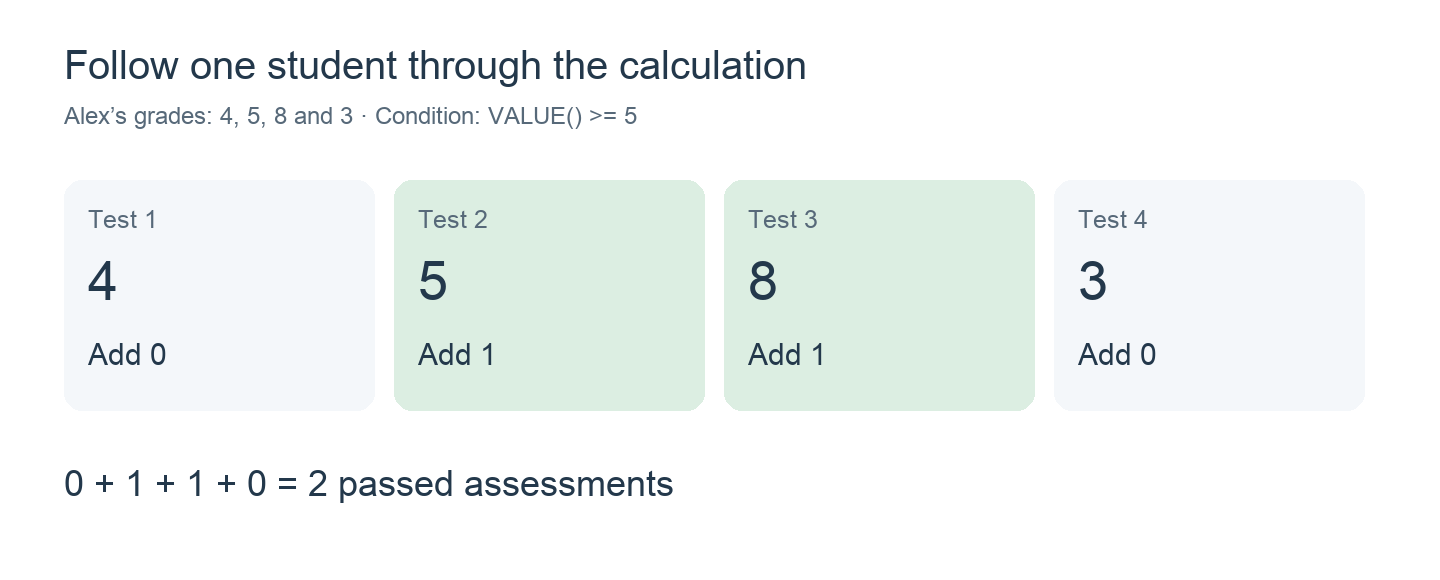
Alex’s grades are 4, 5, 8 and 3. Alex has passed Test 2 and Test 3, so the result should be 2.
2. Create the calculation
Add a calculation column and choose Formula. In Functions, select Count IF condition.
Complete the formula with this condition and your four test columns:
COUNTIF(VALUE() >= 5, Test 1, Test 2, Test 3, Test 4)Use the column selector to insert Test 1, Test 2, Test 3 and Test 4. These names represent your gradebook columns; do not type them as plain text.
Read the formula as: Count how many of these four tests have a grade of 5 or higher.
3. What does VALUE() mean?
VALUE() is the grade being checked. COUNTIF moves through the selected columns, using each grade in turn.
- Test 1: 4 is below 5. Add 0.
- Test 2: 5 meets the condition. Add 1.
- Test 3: 8 meets the condition. Add 1.
- Test 4: 3 is below 5. Add 0.
You only write the rule once. COUNTIF repeats it for every selected column, separately for each student.
The symbol >= means greater than or equal to, so a grade of exactly 5 is included.
4. See the results for your class
The same formula gives each student their own count:
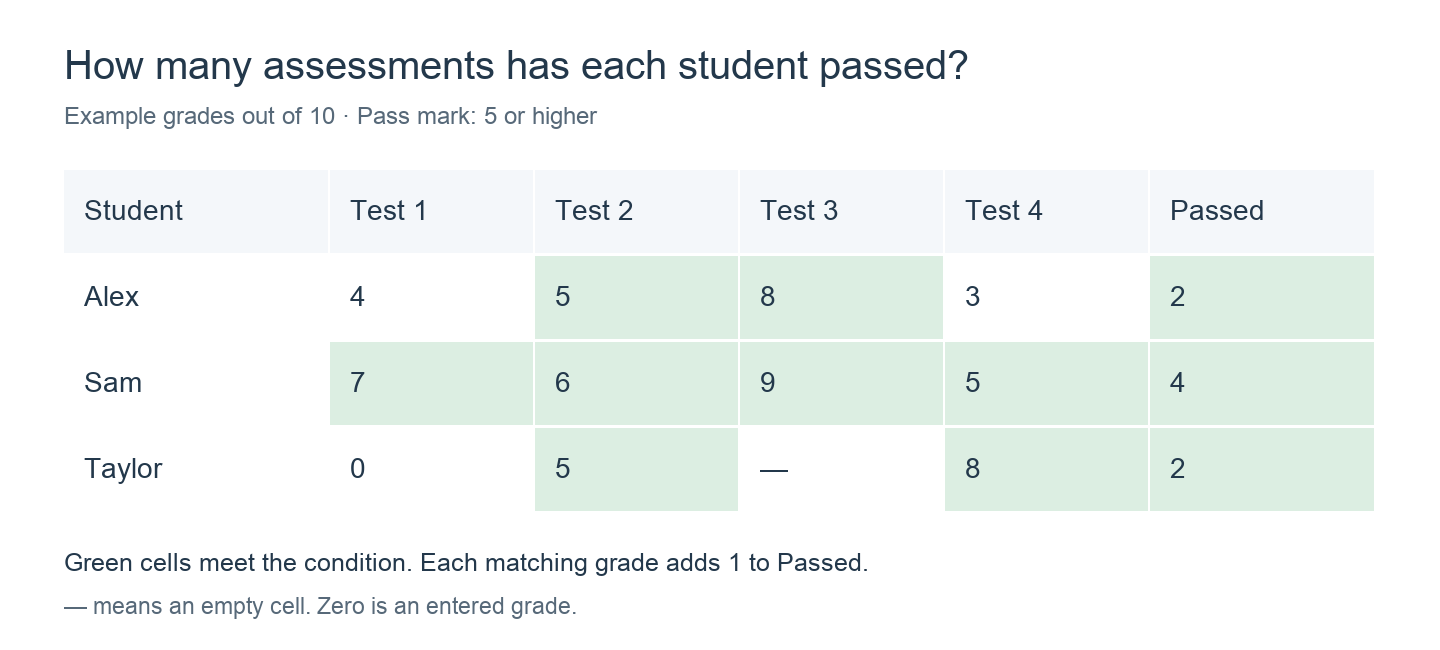
COUNTIF counts tests, not points. Alex’s result is 2 because two grades meet the rule.
5. Change what you count
To count tests with a grade below 5, change only the condition:
COUNTIF(VALUE() < 5, Test 1, Test 2, Test 3, Test 4)The results are Alex: 2, Sam: 0, and Taylor: 1. Taylor’s entered zero counts as below 5; the empty cell does not.
You can change the threshold to suit your grading scale. For example, VALUE() >= 50 counts grades of 50 or higher.
6. Combine two conditions
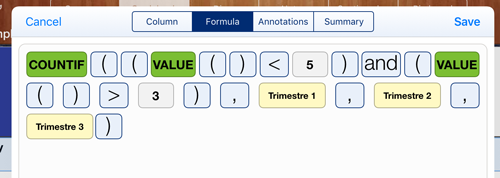
You can use VALUE() more than once in the same condition. For example, to count grades above 3 and below 5, both comparisons must be true:
COUNTIF((VALUE() < 5) and (VALUE() > 3), Test 1, Test 2, Test 3, Test 4)A grade of 4 counts. A grade of exactly 3 or exactly 5 does not. For Alex’s grades (4, 5, 8 and 3), the result is 1.
Original worked examples and template
These app screenshots use three term columns labelled Trimestre 1, Trimestre 2 and Trimestre 3. The first example counts term grades below 5.
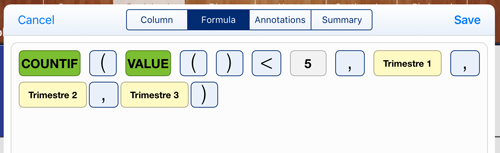
The calculation starts at zero. For each term grade below 5, it adds 1; the final count is the result. The second screenshot combines two conditions to count grades below 5 and above 3:
The original video accompanies these examples:
Download the original COUNTIF example template. It includes the sample data, columns and grade types for the three-term examples above. On your iPad, download it and open it in iDoceo. The password is 1234. The template uses Spanish column names.
Things to remember
- An empty cell is different from zero. Empty cells do not match either example condition. An entered zero counts as below 5. Use COUNTBLANK to count empty cells.
- Include the pass mark. Use
>= 5if 5 is a pass;> 5counts only grades above 5. - Use a consistent scale. These examples assume every test is marked out of 10. The condition does not automatically convert different maximum scores to a common scale.