
Would you like a formula to show a message instead of a number? Use the Text option to insert your words, then use IF to choose which message to display.
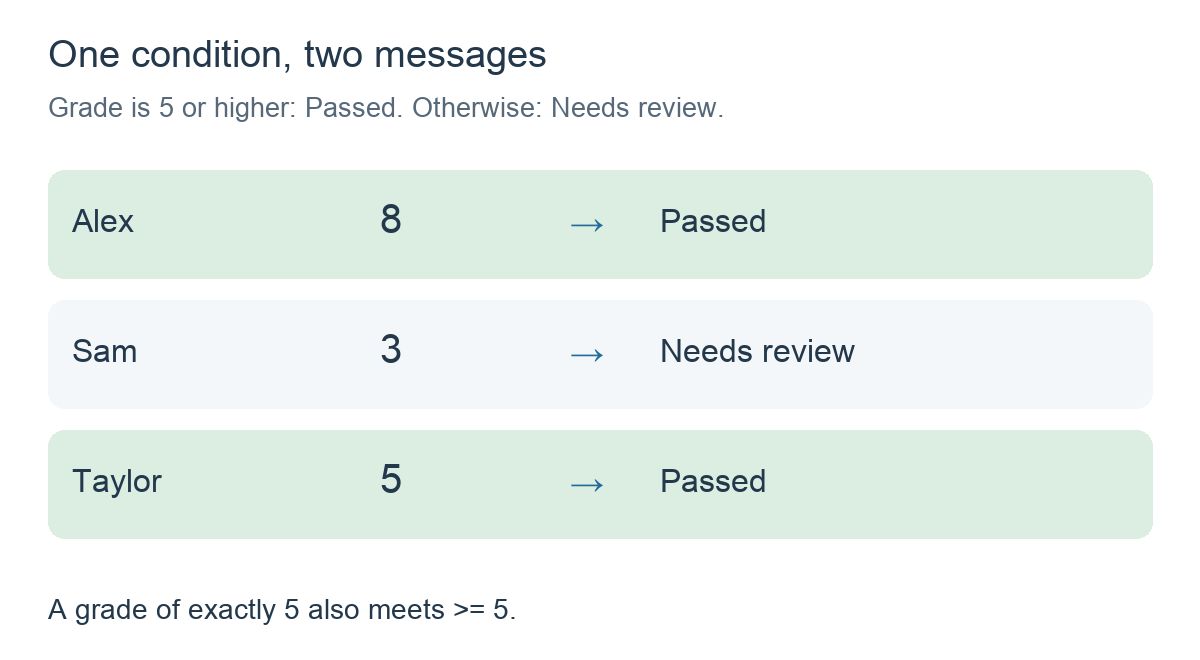
In this example, a test is marked out of 10. A grade of 5 or higher shows Passed. A lower grade shows Needs review.
1. Start with an example
Alex scores 8, Sam scores 3 and Taylor scores 5. The formula should give these results:
2. Add the condition
Add a calculation column and choose Formula. In Functions, select Condition (IF).
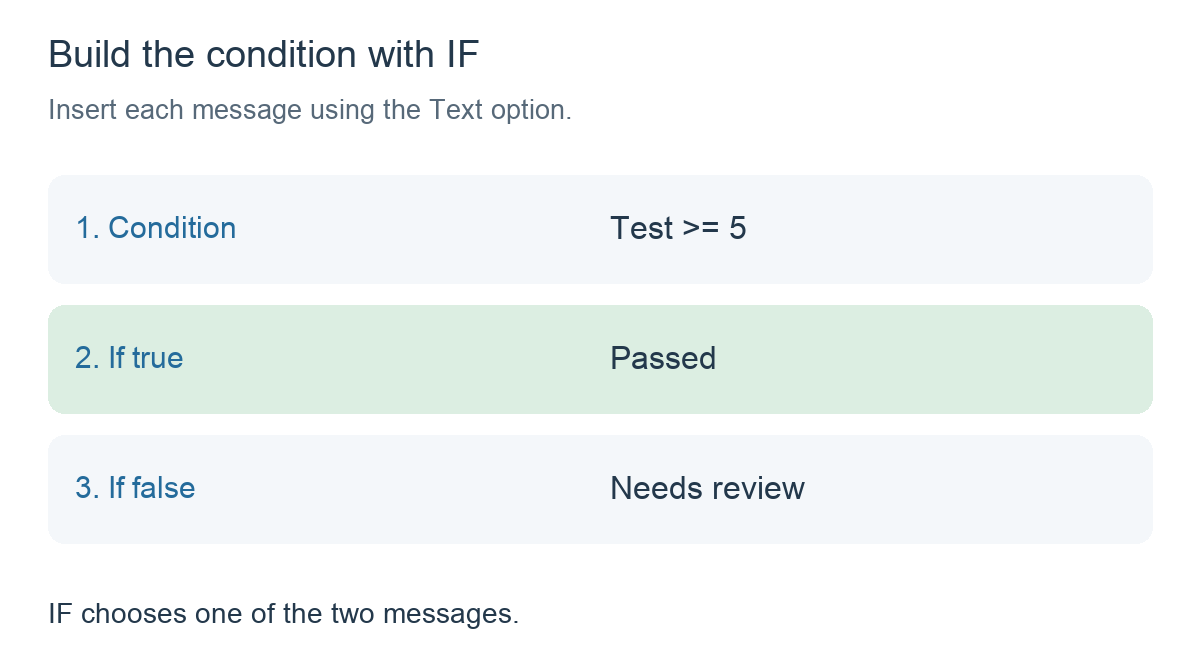
Use the column selector to insert your test column, then add >= 5 as the condition. This asks: Is this student’s test grade 5 or higher?
IF has three parts: the condition, what to show when it is true, and what to show when it is false.
3. Insert the two messages with Text
- After the condition and its comma, select Text in Functions. Enter Passed in the text box and confirm it.
- Add the comma separating the two possible results.
- Select Text again. Enter Needs review and confirm it.
- Close the IF expression with its final parenthesis.
The completed formula reads like this:
IF(Test >= 5, 'Passed', 'Needs review')Test represents your selected column. The quoted words represent the text items inserted using Text. Enter the messages through the text box rather than typing the whole example as plain text.
4. Check the result
- Alex: 8. The condition is true, so the result is Passed.
- Sam: 3. The condition is false, so the result is Needs review.
- Taylor: 5. The condition is true because
>=includes exactly 5. The result is Passed.
This is a message, not a new numeric grade. The original grade remains in the test column.
5. Change the wording or pass mark
Use the Text option to choose wording that suits your class, such as Ready and Practise again. Keep the same condition if your pass mark is still 5.
If your test is marked out of 100 and the pass mark is 50, use Test >= 50 instead. The two messages can stay the same.
An example from the app
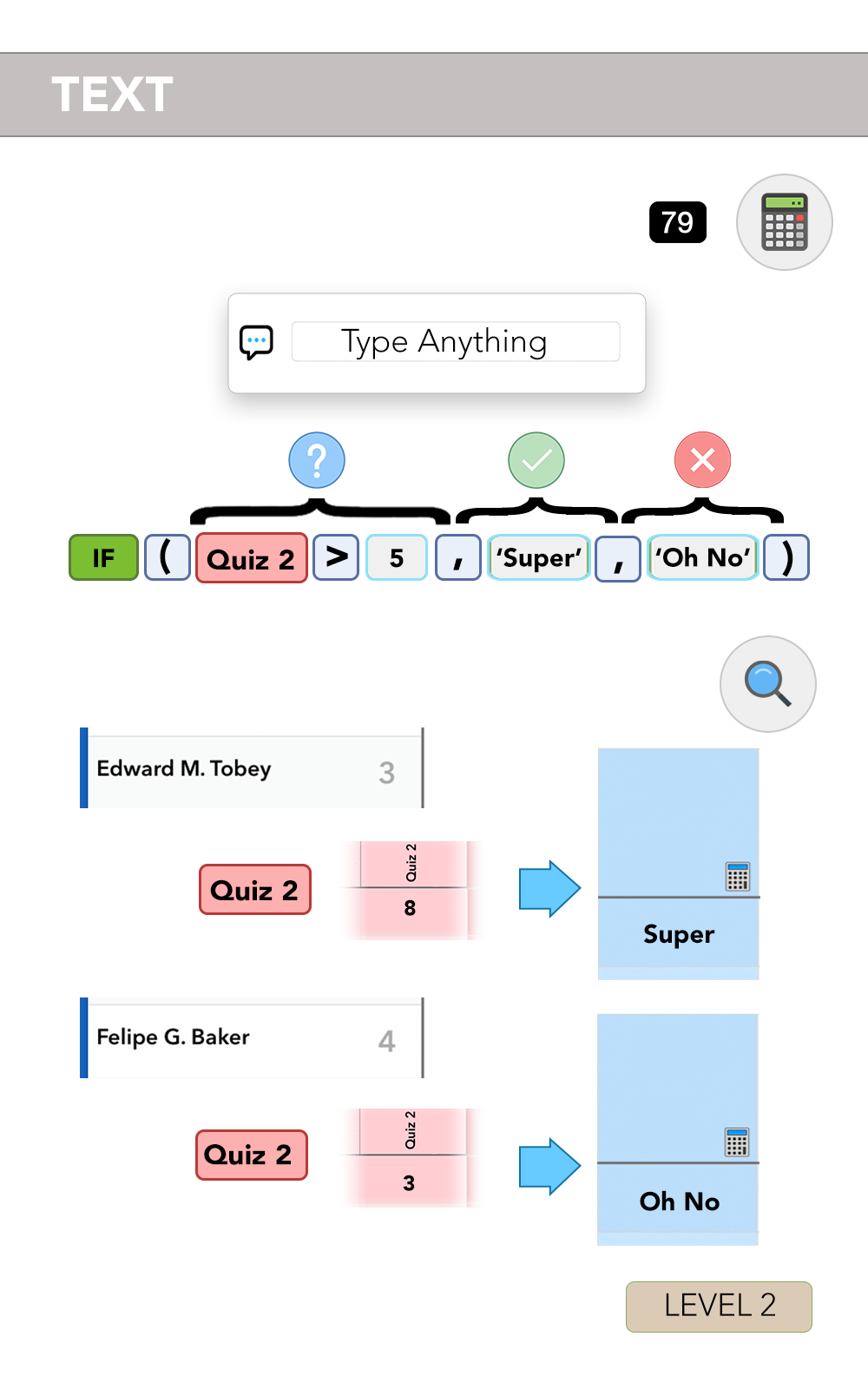
The illustration below comes from iDoceo’s built-in Text documentation. It uses Quiz 2 > 5 and the messages Super and Oh No. A grade of 8 displays Super; a grade of 3 displays Oh No.
Things to remember
- Text inserts the words; IF makes the decision. You do not need to type a TEXT(...) wrapper around either message.
- Give IF both messages. The second message is what appears when the condition is false.
- Check the boundary.
>= 5includes 5;> 5does not. - Use this example with entered numeric grades. It does not provide a separate message for a missing grade. Do not interpret the second message as proof that a grade was entered.