
Use ICONRESULT to show an icon in a formula’s result cell. Combine it with IF to choose the icon according to a grade or calculation.
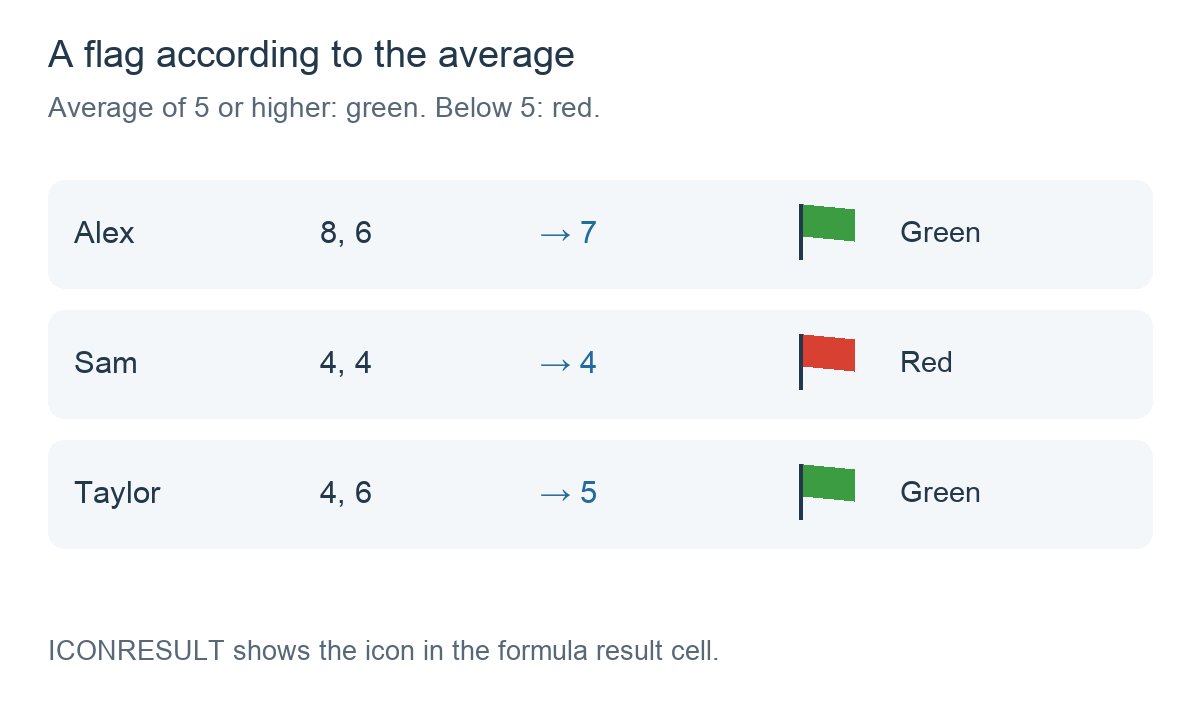
In this example, the average of two tests gives a green flag for 5 or higher and a red flag below 5.
1. Start with two tests
Both tests are marked out of 10. Alex scores 8 and 6, Sam scores 4 and 4, and Taylor scores 4 and 6.
2. Create the formula
Add a calculation column and choose Formula. Insert IF and use FLEXAVERAGE with your two selected test columns for the condition.
For each possible result, choose Icon result (ICONRESULT) in Functions and select the required flag from the icon picker:
IF(FLEXAVERAGE(Test 1, Test 2) >= 5,
   ICONRESULT(Green flag),
   ICONRESULT(Red flag))
Test 1 and Test 2 represent selected column references. Green flag and Red flag represent icon items inserted with the picker. Do not type those labels as plain text or replace them with emojis.
Read the formula as: If the average is 5 or higher, show the green flag. Otherwise, show the red flag.
3. Check the result
- Alex: (8 + 6) ÷ 2 = 7, so the formula shows the green flag.
- Sam: (4 + 4) ÷ 2 = 4, so it shows the red flag.
- Taylor: (4 + 6) ÷ 2 = 5. Exactly 5 meets
>= 5, so it shows the green flag.
ICONRESULT supplies an icon, not a numeric grade. This formula therefore shows the flag on its own. It does not change the original test grades or the student’s own icon list.
4. Keep the average alongside the icon
If you want the number as well as the flag, keep the average as a numeric result and let IF supply the icon:
SUM(FLEXAVERAGE(Test 1, Test 2),
    IF(FLEXAVERAGE(Test 1, Test 2) >= 5,
       ICONRESULT(Green flag),
       ICONRESULT(Red flag)))
SUM preserves the numeric average while ICONRESULT sets the result icon. Alex gets 7 with the green flag, Sam gets 4 with red, and Taylor gets 5 with green.
The icon is an output of the formula; it does not add points to the average.
5. Wait until both grades are entered
FLEXAVERAGE normally skips empty cells. If you want to wait for both tests, add an outer IF using NUMCOL:
IF(NUMCOL(Test 1, Test 2) = 2,
   IF(FLEXAVERAGE(Test 1, Test 2) >= 5,
      ICONRESULT(Green flag),
      ICONRESULT(Red flag)))
The outer condition requires two non-empty test cells. Until then, it supplies no result and neither flag branch is evaluated. An entered zero counts as a grade.
See NUMCOL: Count non-empty cells.
An example from the app
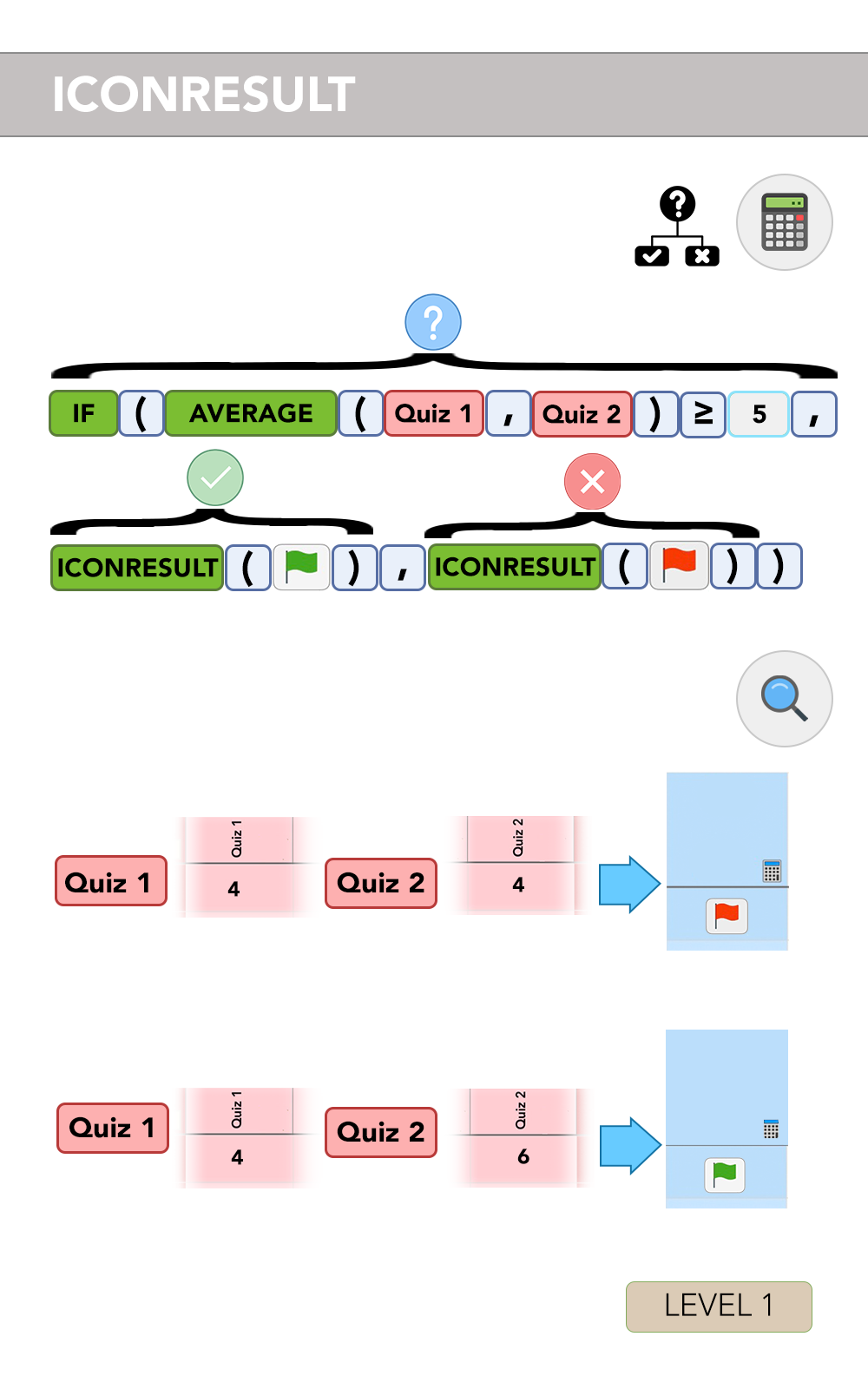
This original illustration from iDoceo’s ICONRESULT documentation shows the same green/red-flag rule. It uses AVERAGE with Quiz 1 and Quiz 2: 4 and 4 give red, while 4 and 6 give green.
Things to remember
- Choose the icons with the picker. The names in this guide are readable placeholders.
- Put ICONRESULT inside the chosen IF branch. IF decides which result icon is set.
- Add a numeric result when you want a number. ICONRESULT alone does not calculate or return a grade.
- Result icons and student icons are different. Use STUDENTICON to check an icon assigned to the student, rather than to display one in a formula cell.