These four functions help you answer different attendance questions: how many attendance columns you have, how many are dated up to today, how often an icon appears, and how many delay minutes a student has accumulated.
They are not four ways to count days present. The two column counters describe the attendance columns. The icon and delay functions calculate a result separately for each student.
1. Set up one simple example
Use actual Attendance columns, created with Add Column > Attendance, in the same tab as your formula columns. A conventional test column with an attendance-like icon is not automatically an attendance column.
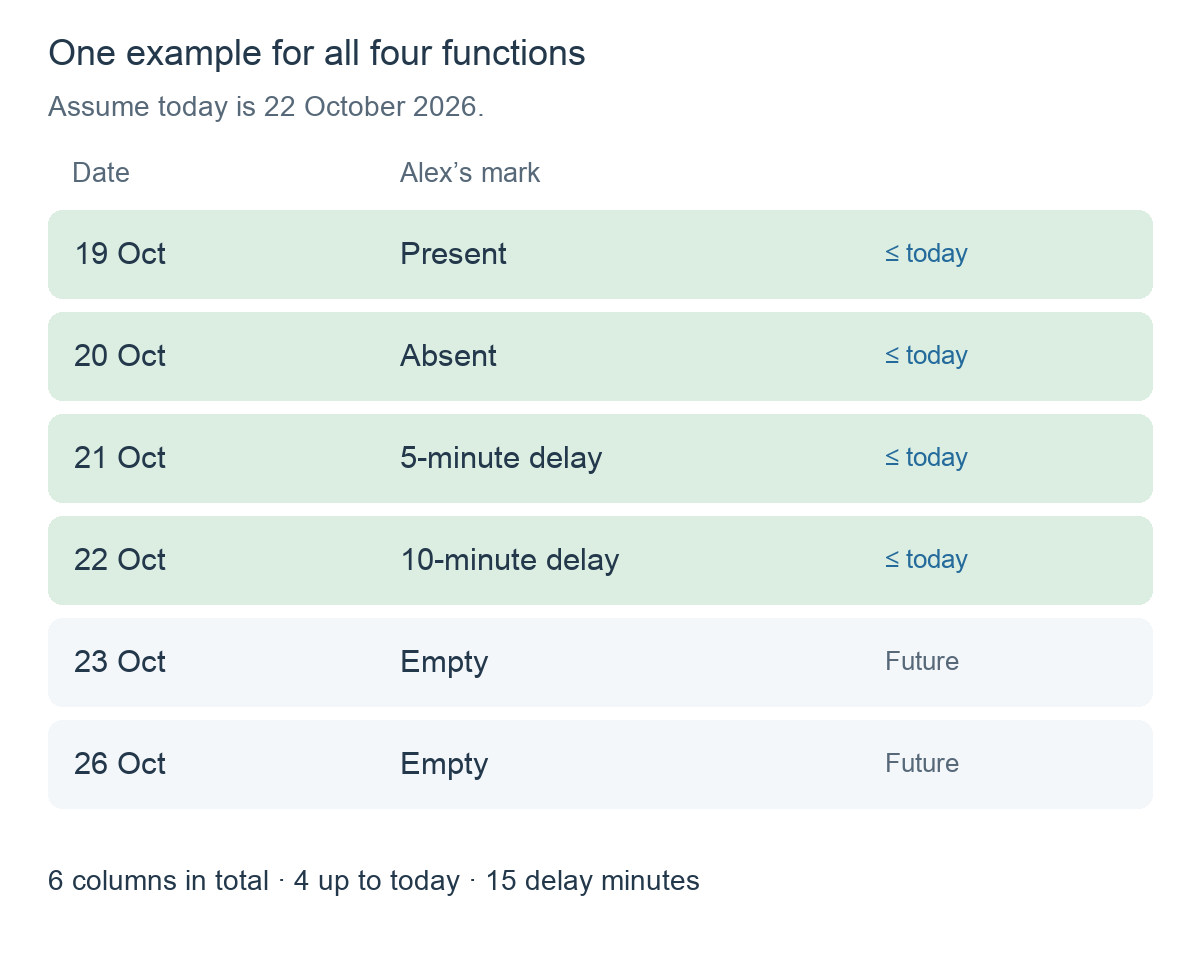
For this example, assume today is 22 October 2026. There are six attendance columns, dated 19, 20, 21, 22, 23 and 26 October. Alex is marked present on the 19th, absent on the 20th, five minutes late on the 21st and ten minutes late on the 22nd. The two future cells are empty.
Add each calculation as a Formula column. In Functions, open Attendance and select the function you need.
2. ATTENDANCECOUNT(): count attendance columns
ATTENDANCECOUNT()This returns the number of attendance columns in the current tab, including future-dated columns and columns whose cells are empty.
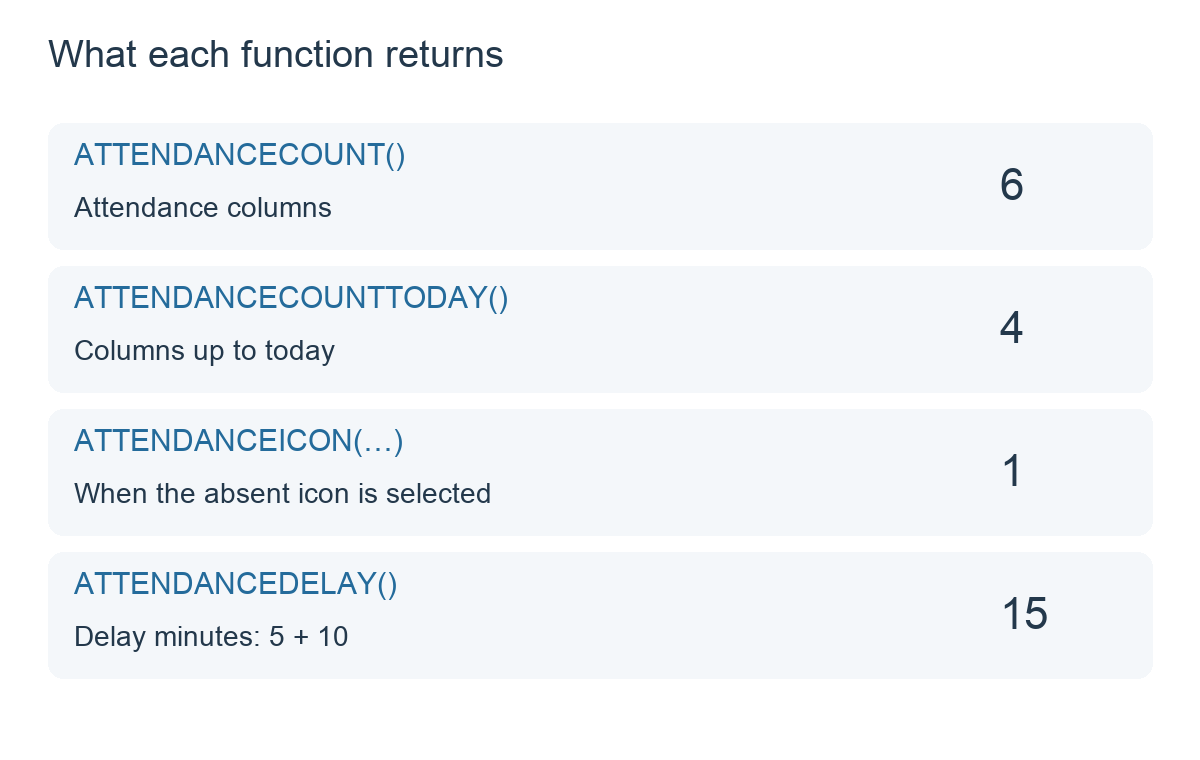
Our result is 6. It is 6 for Alex and for every other student because it counts columns, not that student’s present marks.
You do not pass individual column references to this function. Empty parentheses are correct.
3. ATTENDANCECOUNTTODAY(): count columns up to today
ATTENDANCECOUNTTODAY()This counts attendance columns whose column date is today or earlier. It excludes future-dated attendance columns.
Our result is 4: the columns dated 19, 20, 21 and 22 October. It still counts a qualifying column even if a student’s cell is empty.
The date comes from the column, not the time when you entered an attendance mark. As the real date changes, the number of qualifying columns can change.
4. ATTENDANCEICON(): count selected attendance icons
ATTENDANCEICON(Absent icon)Select Icons in attendance and choose the actual icon you use for absence. Absent icon above represents the item inserted by the icon picker; do not type that label or substitute an emoji.
For Alex, the result is 1, because the selected absent icon occurs once. A student with no matching marks gets 0.
You can select more than one different icon. For example, select the built-in 5-minute and 10-minute delay icons:
ATTENDANCEICON(5-minute delay icon, 10-minute delay icon)Alex’s result is 2: one matching delay icon on each of two days. This counts matching icon occurrences, not minutes. If you use multiple matching icons in a single cell, it is not necessarily a count of distinct days.
Unlike ATTENDANCECOUNTTODAY, this function does not automatically exclude future columns. A matching icon entered in a future attendance column also counts.
5. ATTENDANCEDELAY(): add delay minutes
ATTENDANCEDELAY()This adds the minute values of the recognised built-in delay icons in each student’s attendance cells.
Alex’s result is 15 minutes: 5 + 10. It is not 2 late days. A student with no recognised minute-delay icons gets 0.
Use the actual minute-delay icons, not typed text such as “late” or an arbitrary icon with a grade value. The example uses the built-in 5-minute and 10-minute icons.
This function also uses attendance columns without an automatic “up to today” date filter. Future marks, if entered, can contribute delay minutes.
6. Compare the results
For another student with four present marks and no absence or delay icons, the two column counts would still be 6 and 4, while the absence count and delay total would both be 0.
7. Scope and common mistakes
- Use the current tab. These formula functions select attendance columns from the tab containing the calculation, not automatically from every tab in the class.
- Check Ungraded tags. Attendance columns tagged Ungraded are excluded from this selection.
- Column counts do not prove attendance was recorded. A past empty cell still belongs to a column counted by ATTENDANCECOUNTTODAY.
- Only COUNTTODAY applies the date limit. Do not assume the icon count or delay total has the same filter.
- Choose the exact icons you use. ATTENDANCEICON matches selected icon identities, rather than inferring what a similar-looking symbol means.
- Count sessions carefully. These functions count columns or icon occurrences; two attendance columns on one date do not become one distinct day.
The functions in the app
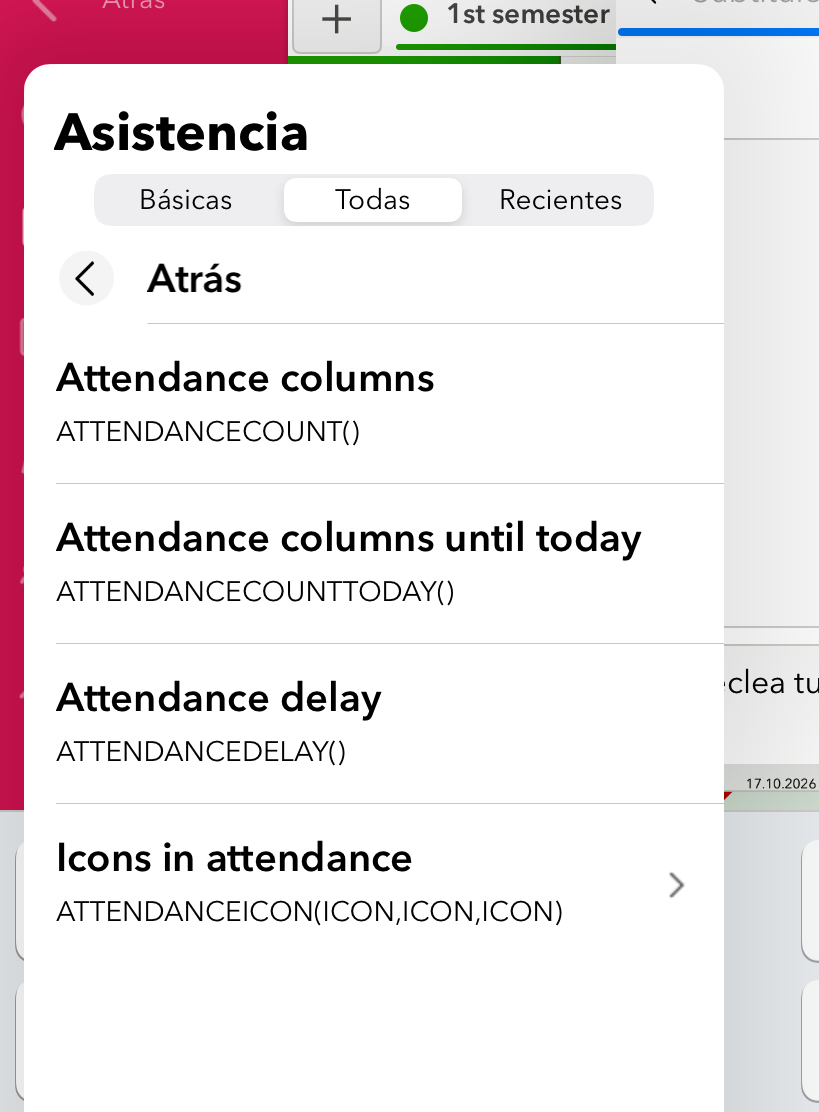
This original screenshot shows the four options together in the Spanish Attendance function menu: