
Use COLORCELL to apply a colour from a formula. Combine it with IF to choose the colour according to a grade.
In this example, a test is marked out of 10. A new formula column displays the same grade, with a green result cell for 5 or higher and a red result cell below 5.
1. Start with an example
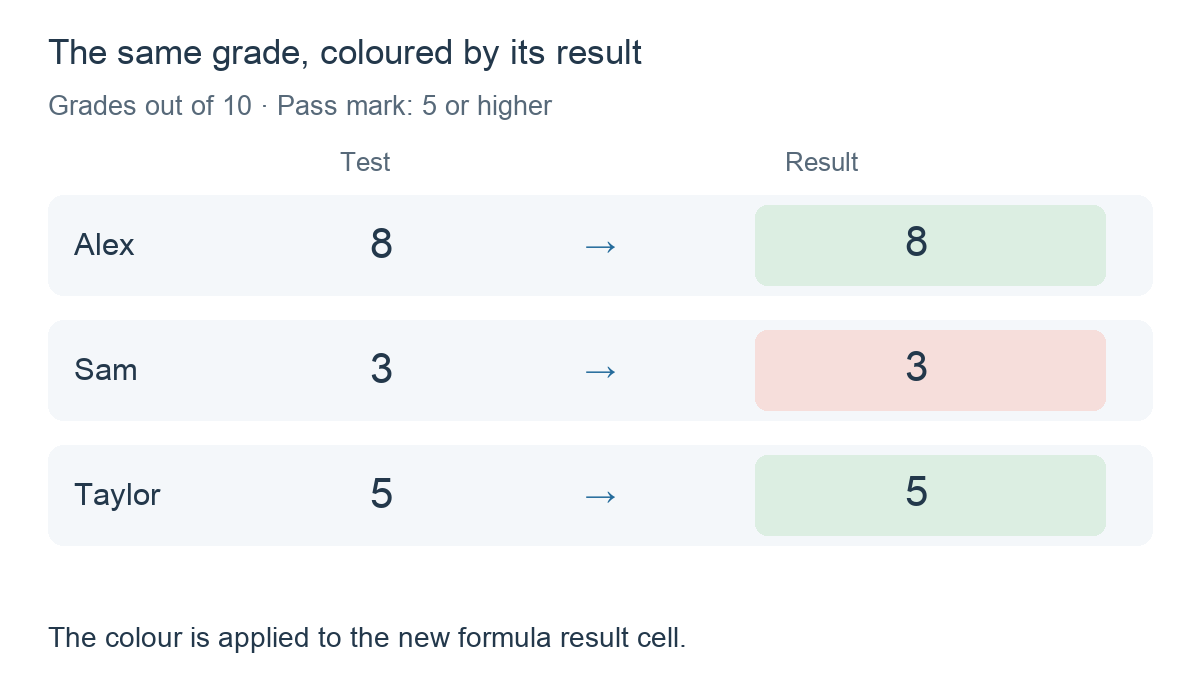
Alex scores 8, Sam scores 3 and Taylor scores 5. We want these results in the new formula column:
2. Create the formula
Add a calculation column and choose Formula. Insert IF and use the column selector to build the condition Test >= 5.
Complete the two results with SUM and COLORCELL. Selecting Color cell (COLORCELL) in Functions opens the colour picker. Choose green for the first result and red for the second.
IF(Test >= 5,
   SUM(Test, COLORCELL(Green)),
   SUM(Test, COLORCELL(Red)))
Test represents your selected test column. Green and Red represent the colour items inserted with the picker. Do not type those labels as plain text, and do not enter a colour name or hex code instead of selecting the colour.
Read the formula as: If the test grade is 5 or higher, show the grade and colour its result cell green. Otherwise, show the grade and colour its result cell red.
3. Why is SUM included?
COLORCELL applies a colour; it does not return a numeric grade. Used on its own, it supplies no number for the formula to display.
SUM(Test, COLORCELL(Green)) evaluates both parts: Test supplies the grade and COLORCELL applies the colour. SUM keeps the numeric grade as the result.
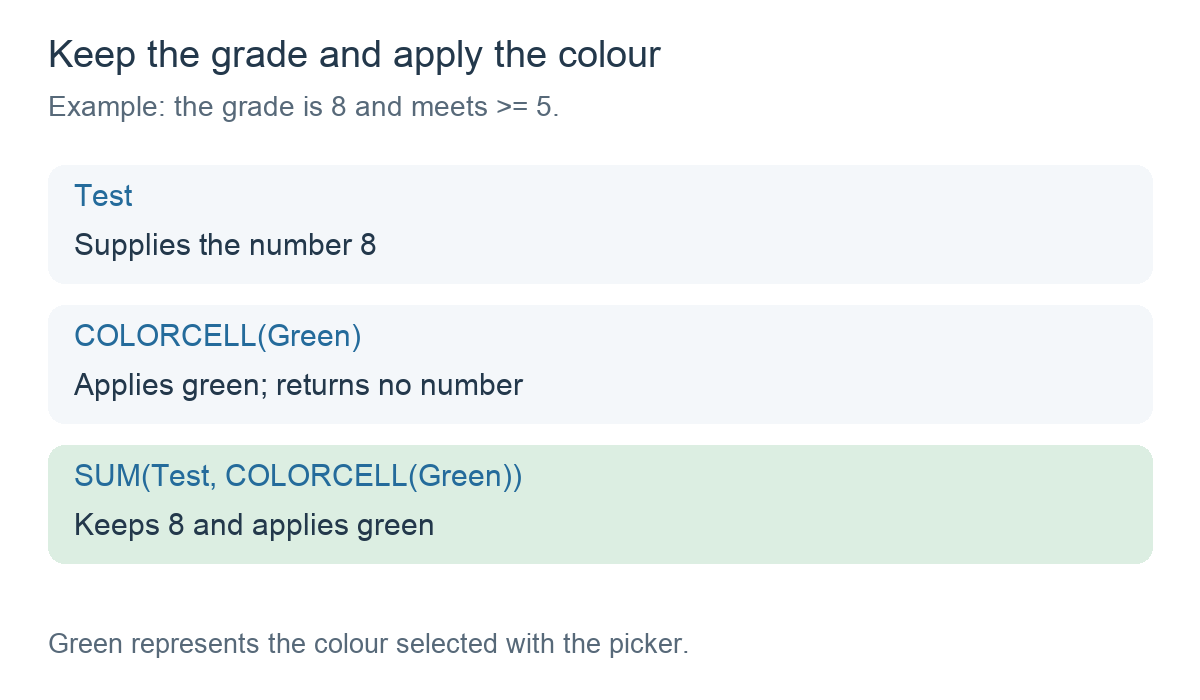
Put COLORCELL inside the appropriate IF result, as shown above. IF chooses which colour action to perform.
4. Check the result
- Alex: 8. The condition is true. The first result shows 8 with green.
- Sam: 3. The condition is false. The second result shows 3 with red.
- Taylor: 5. Exactly 5 meets
>= 5, so the result shows 5 with green.
Both outcomes specify a colour. When a grade changes from below 5 to 5 or higher, the formula has a green branch to use; when it changes back, it has a red branch.
5. Leave missing grades blank
The first formula is for entered numeric grades. If some test cells are empty, add an outer condition so that the formula only runs when the test cell has a value:
IF(COUNTBLANK(Test) = 0,
   IF(Test >= 5,
      SUM(Test, COLORCELL(Green)),
      SUM(Test, COLORCELL(Red))))
COUNTBLANK returns 0 when the selected test cell is filled. In that case, the inner formula runs. When the cell is empty, this two-argument outer IF supplies no result, leaving the formula’s numeric result blank.
An entered zero is not empty: it displays 0 with red. See COUNTBLANK: Count empty cells.
6. Which cell receives the colour?
COLORCELL(Green) without a target column applies the colour to the formula’s own result cell. This is the form used throughout the example.
COLORCELL can also target other columns, for example COLORCELL(Green, Test), where Test is a directly selected column reference. That version changes the target cell’s colour, so it is a different operation from colouring the new result column.
Use a direct column reference for a target. Do not put IF or an average expression in the target position.
Things to remember
- Keep the number you want to display. COLORCELL supplies a colour, not the grade.
- Choose colours with the picker. The names in this guide are readable placeholders for selected colour items.
- Specify both outcomes. The example explicitly chooses green or red rather than assuming a previous colour will clear itself.
- Keep the number visible. A readable grade remains useful even when a reader cannot distinguish the colours.