
AVERAGEIF lets you apply a condition before adding grades to a total. It then divides that total by all the selected columns, including columns whose grades did not meet the condition.
Use it when a grade that does not meet your rule should contribute zero to this calculation, while its column still counts in the divisor. The original grades are unchanged.
If you want the average of only the grades that meet the condition, use FLEXAVERAGEIF instead. The comparison below explains the difference.
1. Start with an example
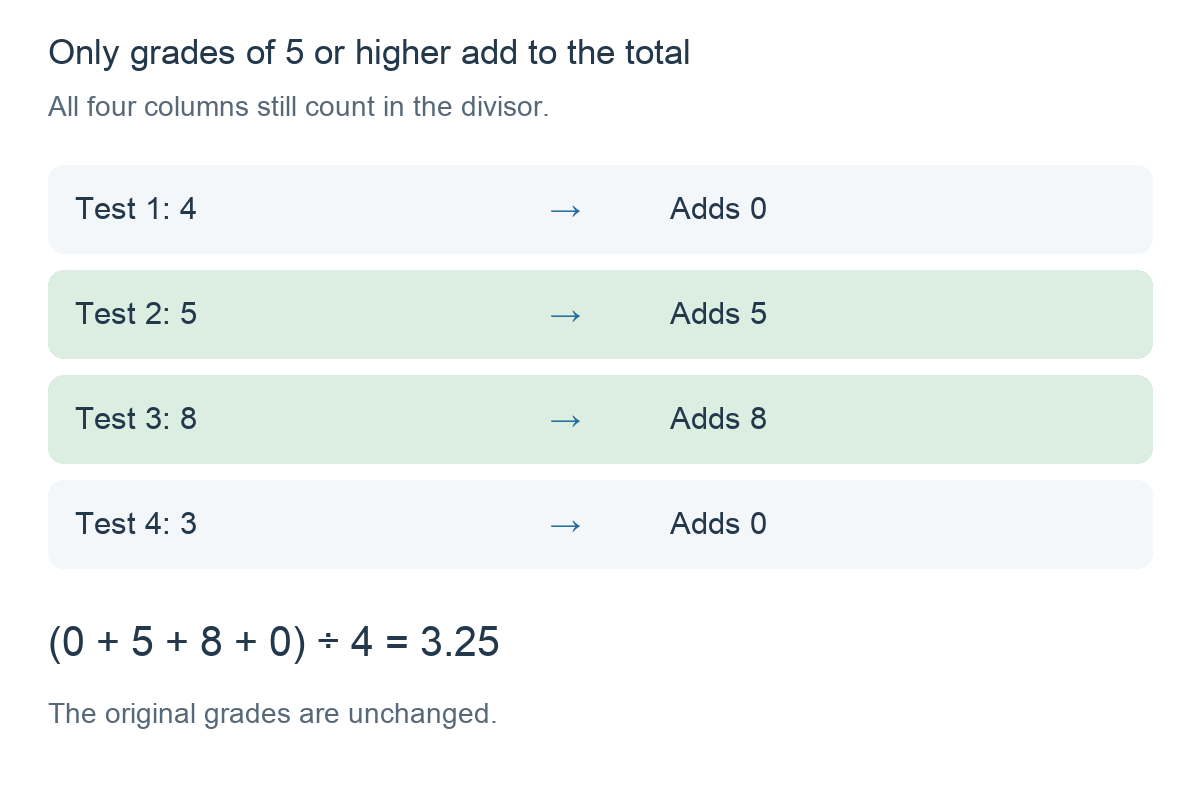
Alex has four test grades, all marked out of 10: 4, 5, 8 and 3. We want only grades of 5 or higher to add to the total, but we still want to divide by all four tests.
The grades 5 and 8 add to the total. The grades 4 and 3 contribute zero for this calculation. The result is (0 + 5 + 8 + 0) ÷ 4 = 3.25.
2. Create the calculation
Add a calculation column and choose Formula. In Functions, select Average IF. Complete the expression as follows, using the column selector to insert your test columns:
AVERAGEIF(VALUE() >= 5, VALUE(), Test 1, Test 2, Test 3, Test 4)Test 1 to Test 4 represent your selected columns, not names to type as plain text.
Read the formula as: For each test, add its grade if it is 5 or higher. Then divide the total by the number of selected tests.
3. Understand the arguments
AVERAGEIF uses this structure:
AVERAGEIF(condition, operation, column, column, ...)- Condition:
VALUE() >= 5checks whether the current grade is 5 or higher. - Operation:
VALUE()adds the matching grade unchanged. You must include this second argument even when you do not want to change the grade. - Columns: the tests to check. Every selected column counts in the divisor.
VALUE() means the value of the cell currently being checked, separately for each student.
4. Compare AVERAGEIF and FLEXAVERAGEIF
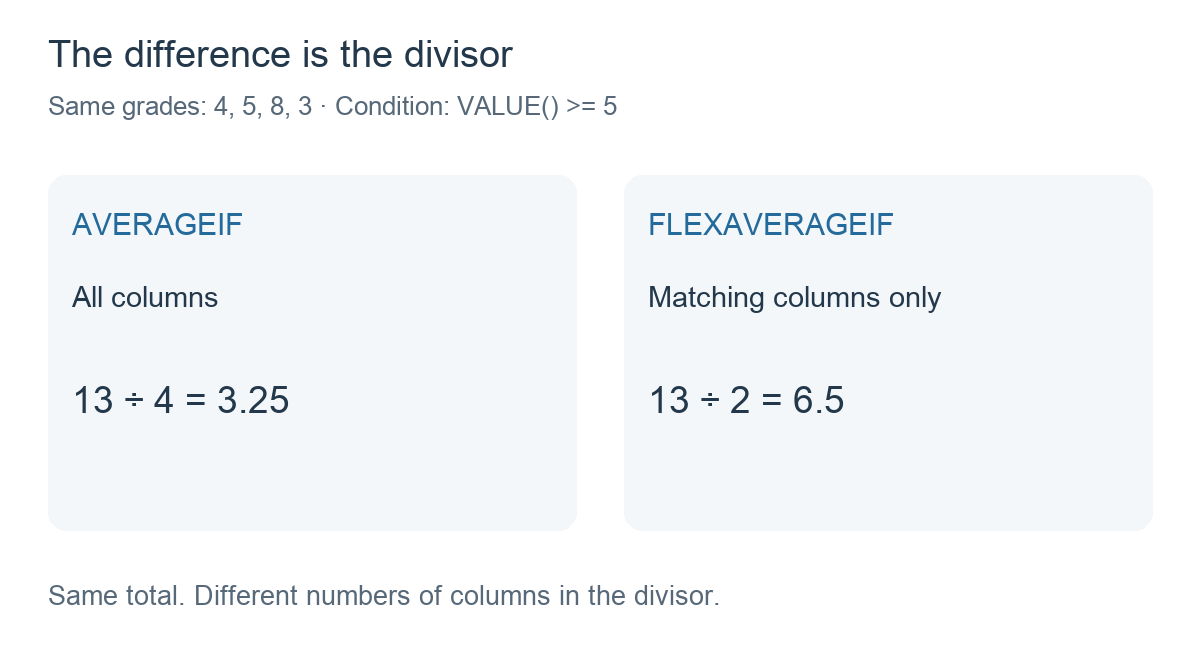
With the same four grades and the same condition, the two functions give different results:
To average only the passing grades, the formula would be:
FLEXAVERAGEIF(VALUE() >= 5, VALUE(), Test 1, Test 2, Test 3, Test 4)This gives (5 + 8) ÷ 2 = 6.5. AVERAGEIF gives 3.25 because it divides by four, not two.
5. Apply an operation to matching grades
The second argument can change each matching grade before it is added. For example, add one point to every grade of 5 or higher:
AVERAGEIF(VALUE() >= 5, VALUE() + 1, Test 1, Test 2, Test 3, Test 4)The matching grades 5 and 8 contribute 6 and 9. The other two still contribute zero. The result is (0 + 6 + 9 + 0) ÷ 4 = 3.75.
The operation affects this formula’s result only; the original test grades stay 4, 5, 8 and 3.
6. What happens with empty cells?
AVERAGEIF still counts an empty selected cell in the divisor. With grades 4, 5, 8 and an empty cell, the condition above adds 5 + 8 and divides by four. The result is still 3.25.
If none of the selected grades meets this condition, the result is 0. FLEXAVERAGEIF, by contrast, has no numeric result when no grades match.
Things to remember
- AVERAGEIF divides by all selected columns. It does not automatically divide only by matching grades.
- Do not omit the operation. Use
VALUE()to keep each matching grade unchanged. - Include the threshold if needed.
>= 5includes a grade of exactly 5. - Use a consistent scale. These examples assume every test is marked out of 10.
Related guide: COUNTIF: Count grades that meet a condition.