
Would you like to use a different average for students marked with an icon? Combine STUDENTICON with IF to choose which calculation each student receives.
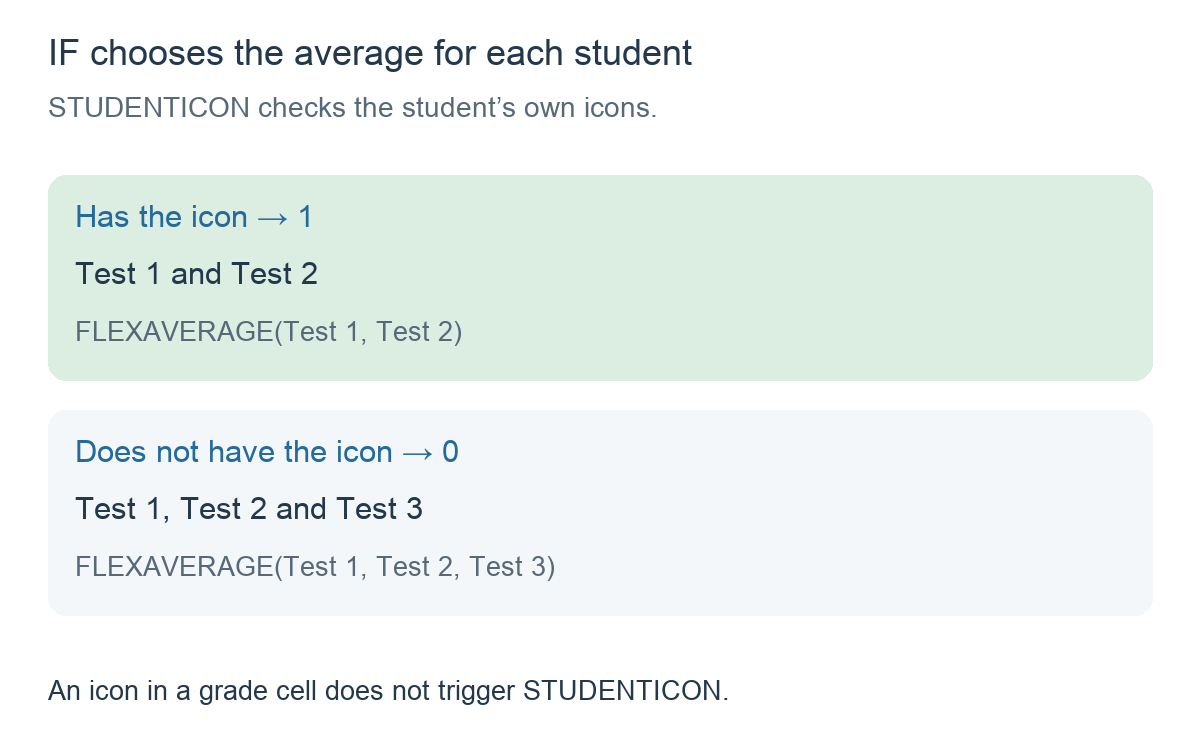
In this example, students with a blue flag use the average of Test 1 and Test 2. Students without that flag use the average of Test 1, Test 2 and Test 3.
1. Start with the grades
Create three test columns, all marked out of 10. To make the difference easy to see, Alex and Sam have the same grades: 6, 8 and 4.
Assign the blue flag to Alex as a student icon, using the icon selector in the student’s details. Leave Sam without that flag.
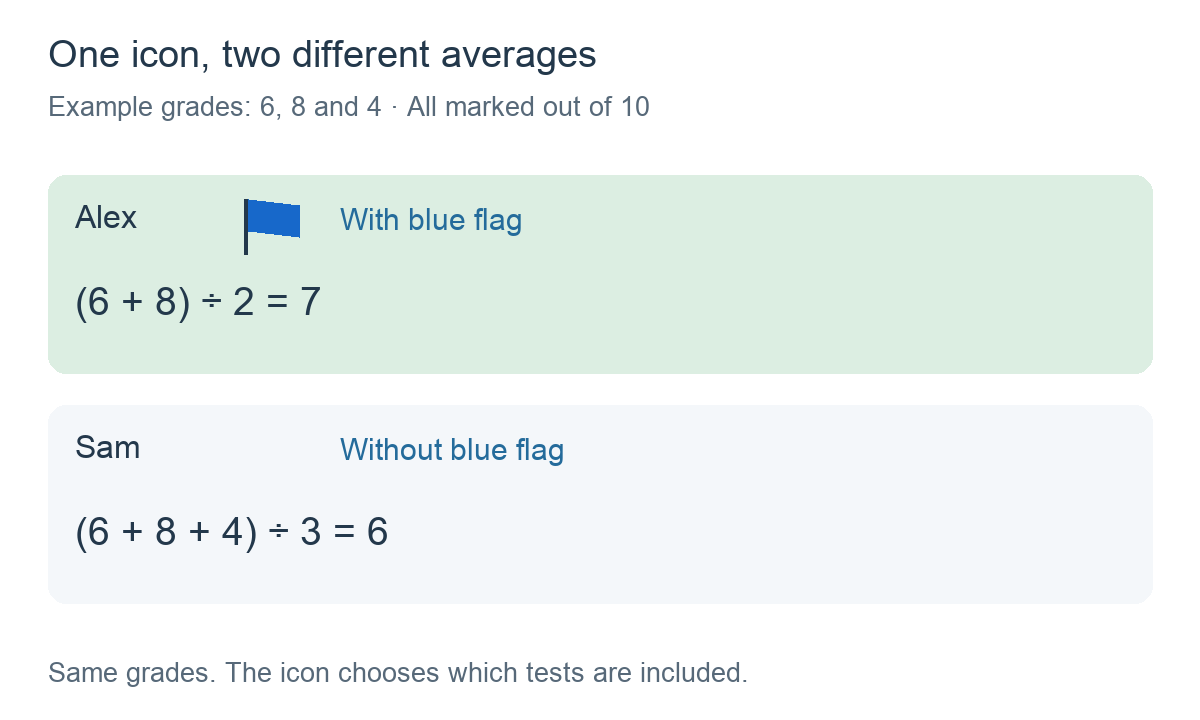
Use the student’s own icon list, displayed beside the student’s name when student icons are visible. Adding the flag to a test cell does not make STUDENTICON true.
2. Create the formula
Add a calculation column and choose Formula. Insert IF, then use Student has icon (STUDENTICON) in Functions to select the same blue flag from the icon picker.
Complete the two results with FLEXAVERAGE, inserting the test references using the column selector:
IF(STUDENTICON(Blue flag),
   FLEXAVERAGE(Test 1, Test 2),
   FLEXAVERAGE(Test 1, Test 2, Test 3))
Blue flag represents the icon inserted by the picker; Test 1 to Test 3 represent selected columns. Do not type these placeholder names as plain text or substitute an emoji for the selected icon.
Read the formula as: If this student has the blue flag, average the first two tests. Otherwise, average all three tests.
3. Understand the three parts
- The condition:
STUDENTICON(Blue flag)returns 1 when the student has the selected icon and 0 when they do not. IF can use that result directly. - If true:
FLEXAVERAGE(Test 1, Test 2)calculates the average for students with the flag. - If false:
FLEXAVERAGE(Test 1, Test 2, Test 3)calculates the average for students without the flag.
4. Check the results
Alex has the flag. IF uses the first average: (6 + 8) ÷ 2 = 7. Test 3 is not included in Alex’s calculation.
Sam does not have the flag. IF uses the second average: (6 + 8 + 4) ÷ 3 = 6.
The original grades remain 6, 8 and 4 for both students. A different student icon does not match the selected blue flag.
5. Choose your own two averages
You can replace the test references in either FLEXAVERAGE with the columns that belong in your two calculations. Keep all grades on the same scale.
Use any student icon that suits your class, but select that exact same icon in STUDENTICON. To test your setup, assign it to one student and leave it off another, then check which average each receives.
FLEXAVERAGE skips empty cells in the chosen group. An entered zero is included. If every selected cell in the chosen average is empty, there is no numeric average.
An example from the app
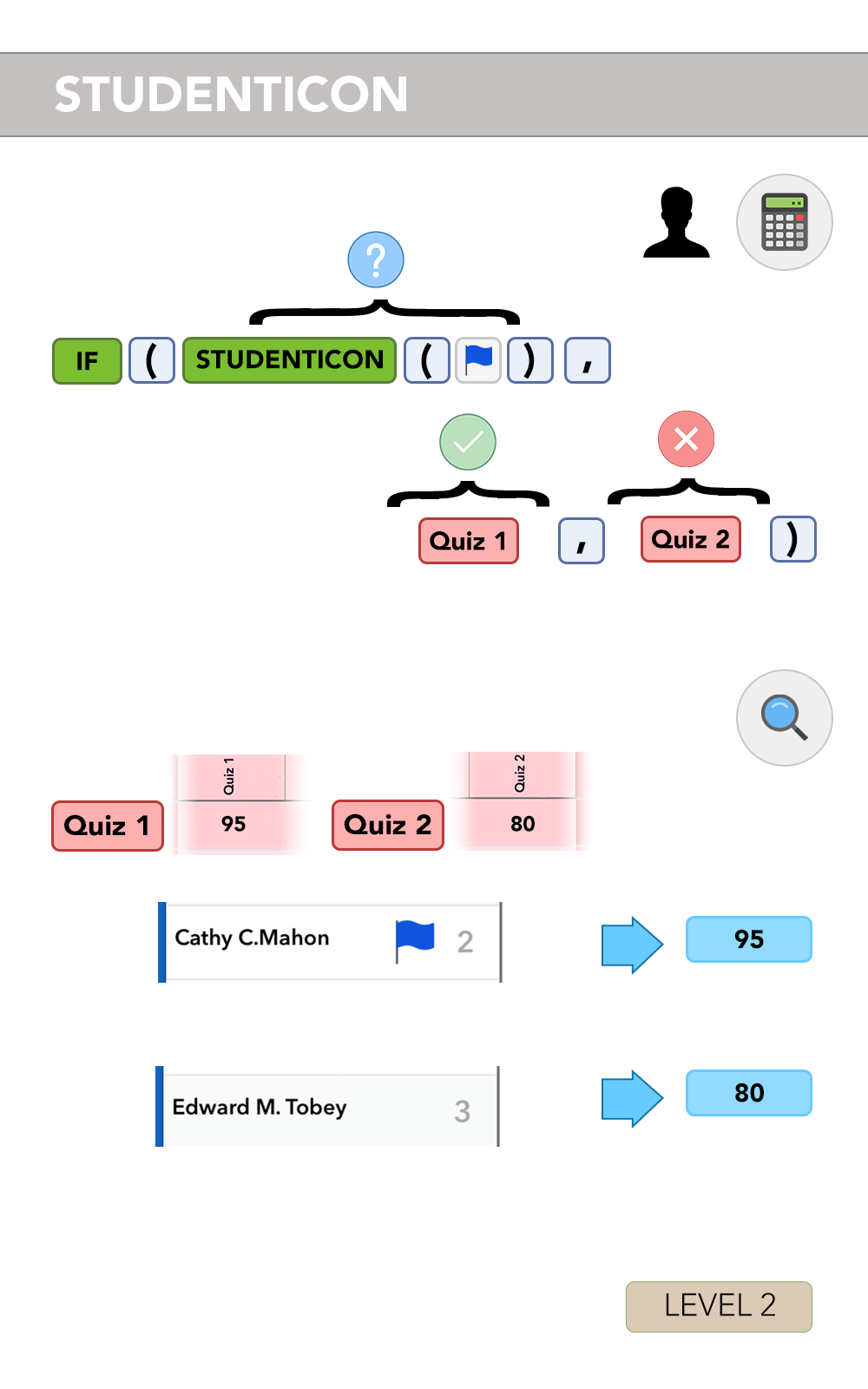
This illustration comes from iDoceo’s built-in STUDENTICON documentation. It shows the same IF condition choosing between Quiz 1 and Quiz 2: the student with the blue flag receives the first column’s value, and the student without it receives the second.
Things to remember
- STUDENTICON checks the student’s icons. It does not search gradebook cells for that icon.
- The first average is for students with the icon. The second is for students without it.
- Select the icon using the picker. You do not need to know or type its internal code.
- An icon selects a calculation. It does not add points or change the source grades by itself.